Zapier integration
Pairing OKZest with Zapier gives your images super powers
Zapier connects your apps together, so when something happens in one of your tools, OKZest can instantly create a custom image using real data from sources like your CRM, spreadsheets, booking systems, and more.
A few examples of what you can do:
- Auto-generate certificates or event tickets with the attendee's name filled in
- Post a custom social media image whenever a milestone is hit
- Create personalised images for customer onboarding, travel bookings, or hospitality workflows
Finished images can be delivered anywhere Zapier supports e.g. SMS, social media, messaging apps, websites, and more.
Getting started - OKZest API key
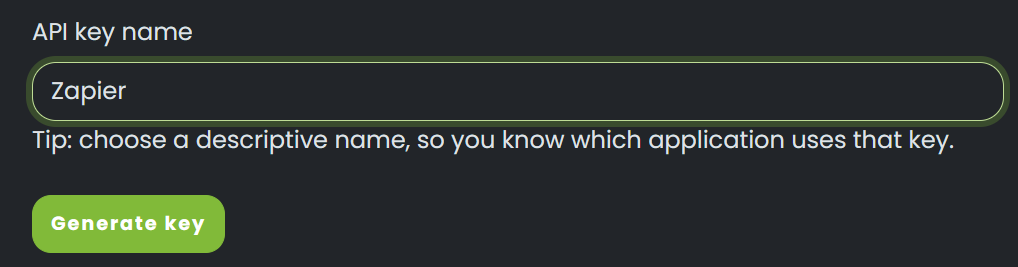
On the next page, copy the API key provided (it will only be shown once) as you will need it in this setup process.
Zapier setup
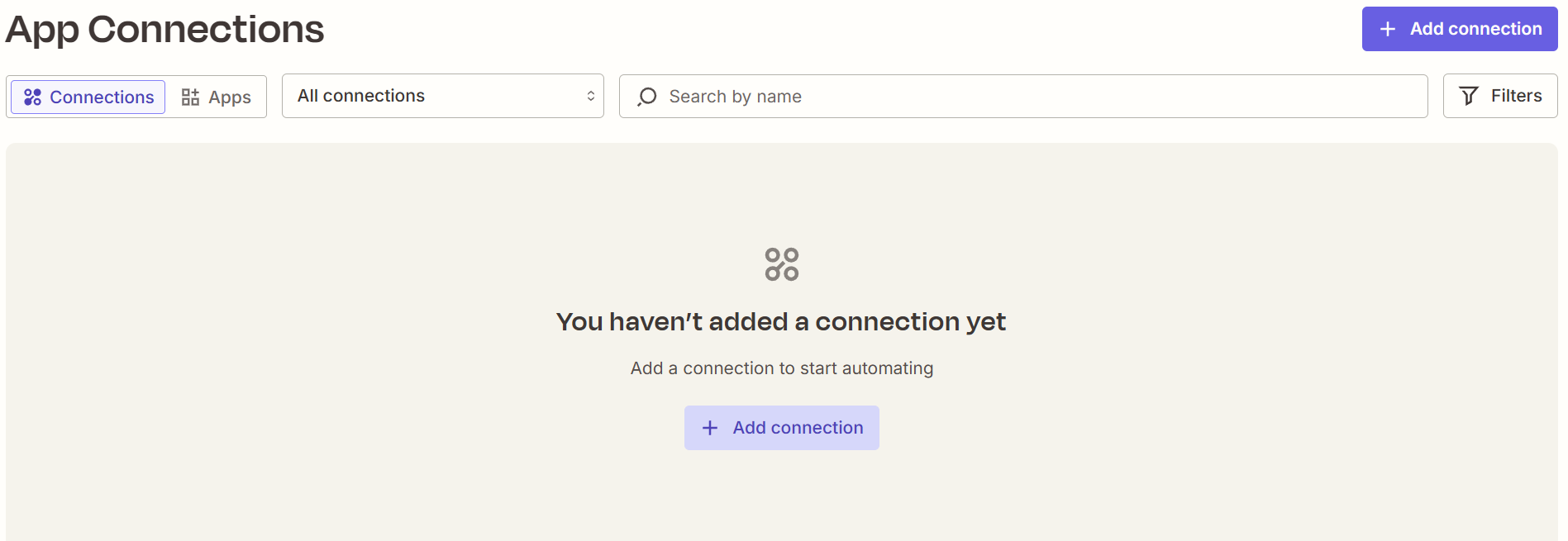
Go to Zapier app connections and select Add connection.
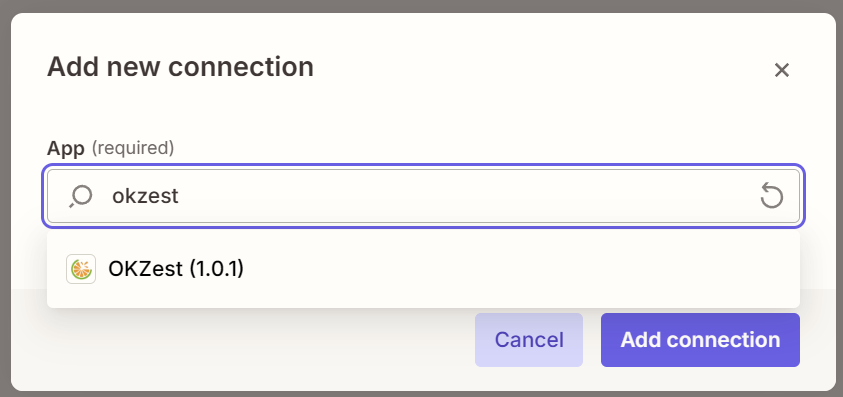
Search for OKZest. Select OKZest. Select Add connection.
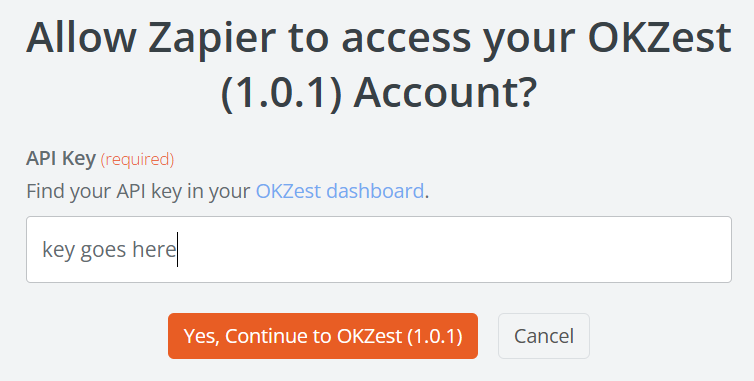
A new window will appear, requesting your OKZest API key which you created in the first step. Enter it here and select Yes, Continue to OKZest.
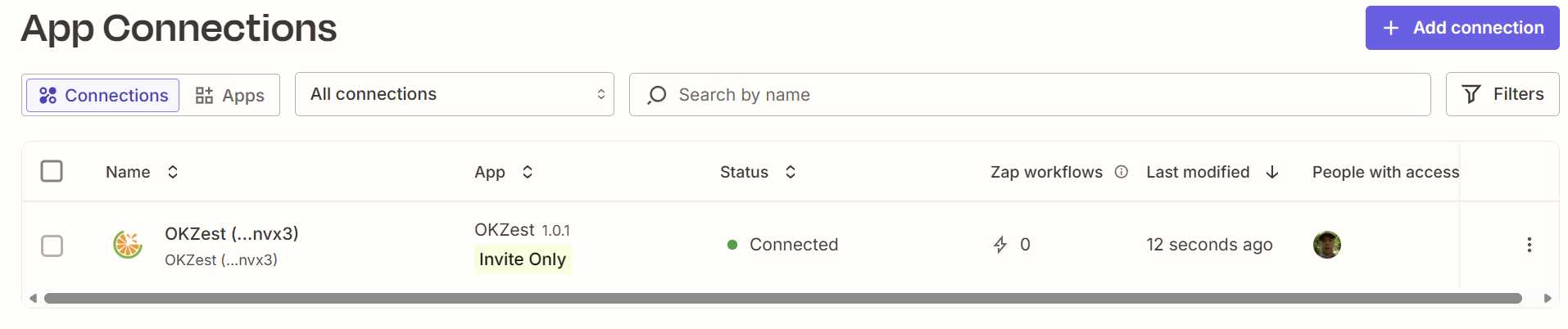
The Zapier app connections window will now list the OKZest connection.
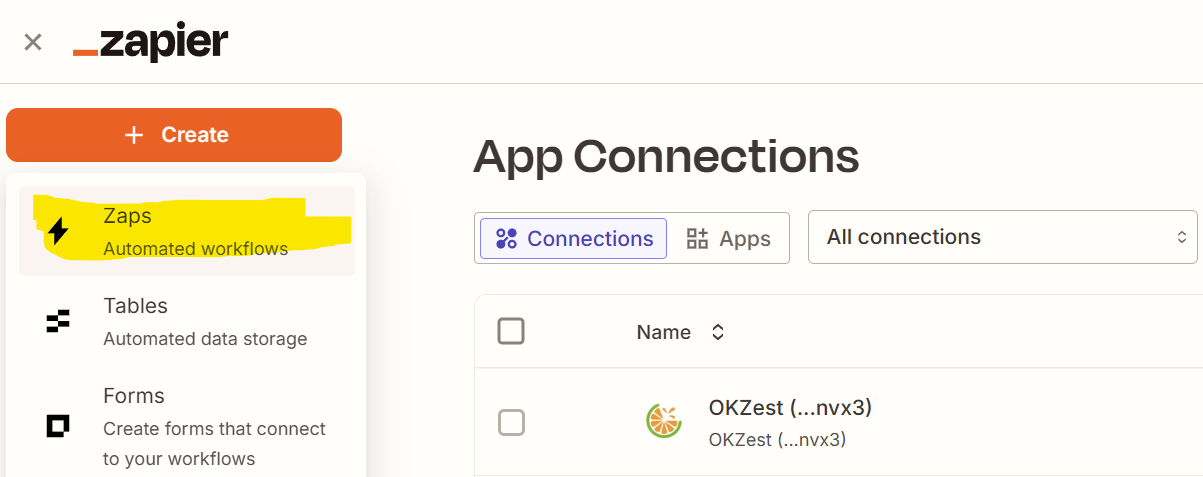
From the Zapier app connections page, select Create - Zaps
Example use-case - generate images using live weather information into OKZest
We want to get some data to pass to our design, this could be data from your CRM, in this example we will use live weather information.
Data source
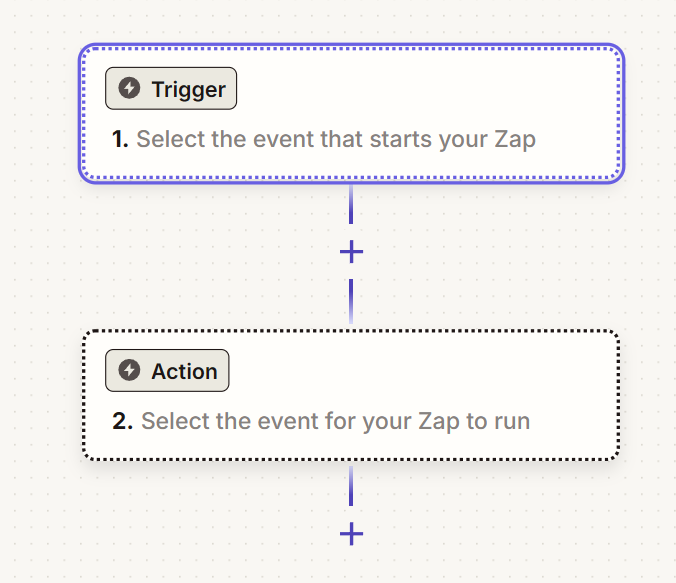
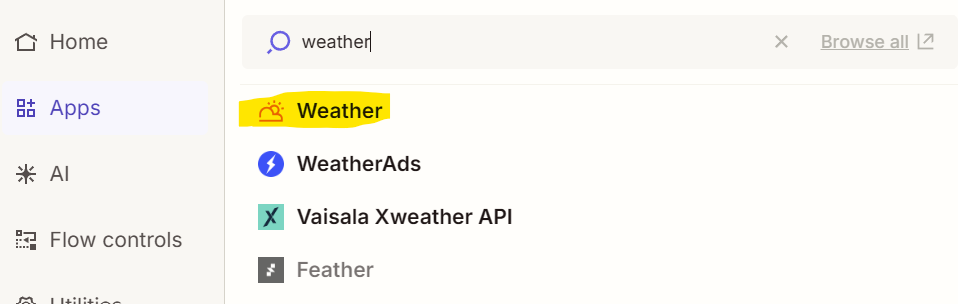
Select 'Trigger' from step 1. Type weather in the search box. Select Weather.
Select Trigger event. Select Today's Forecast. Select Continue. Enter 52 into Latitude. Enter 0.75 into Longitude. Select Continue. Select Test trigger. Select Continue with selected record.
Configure OKZest action
Select Action from step 2. Search for OKZest. Select OKZest.
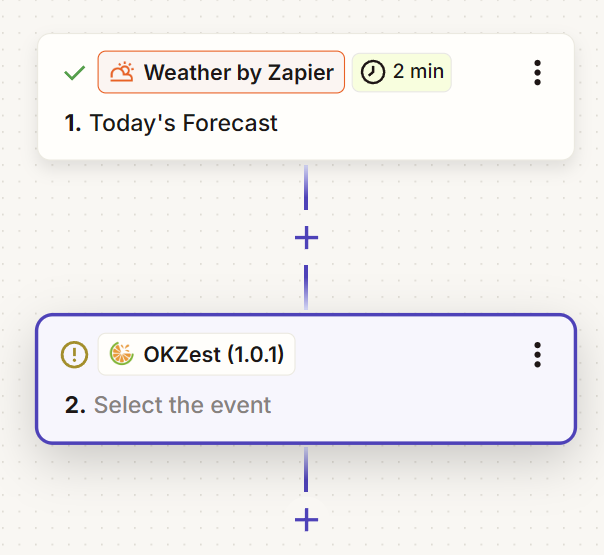
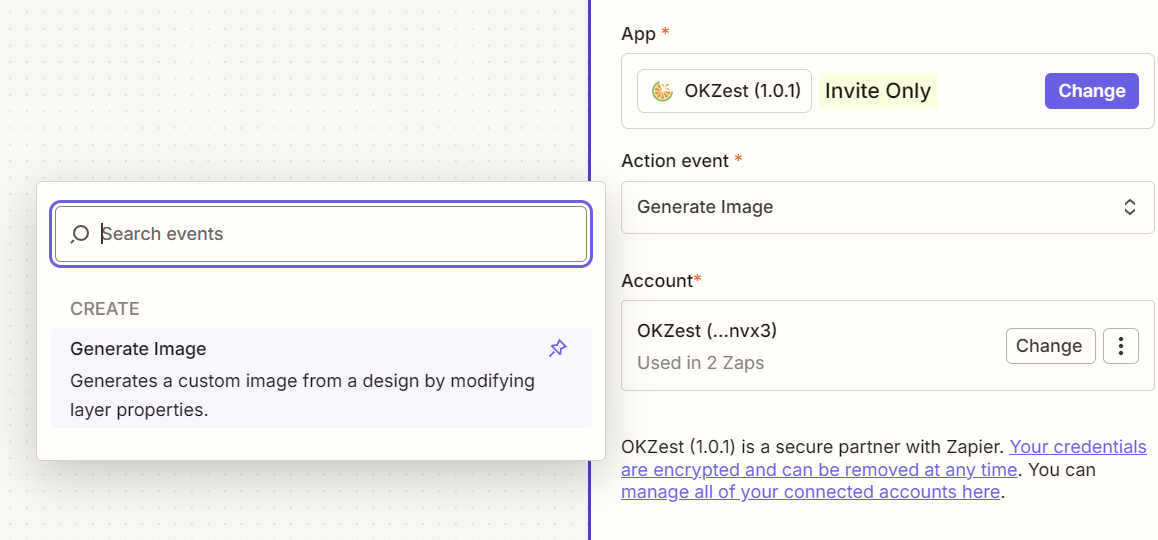
Select the dropdown Action event. Select Generate Image. Select Continue.
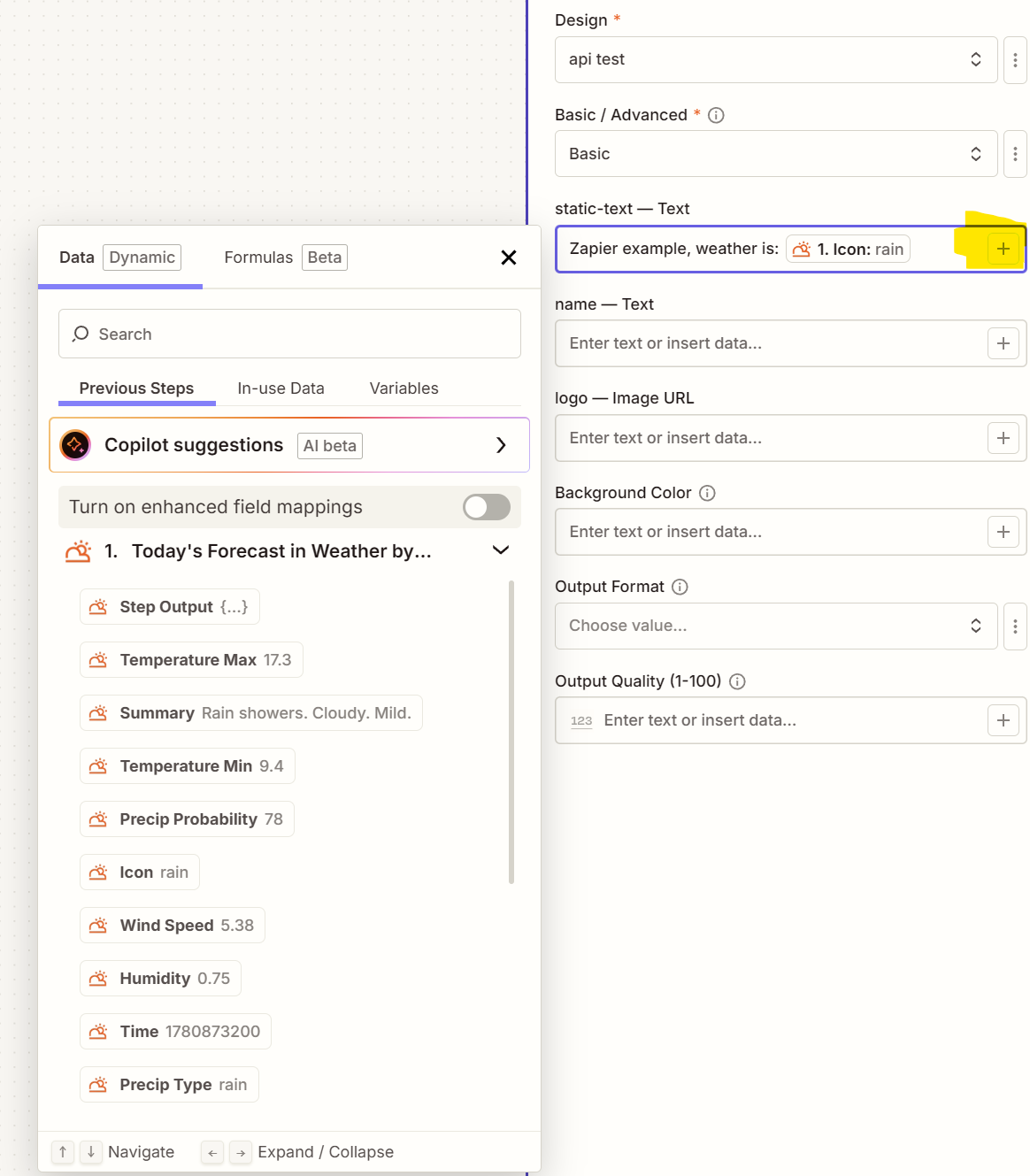
Select the dropdown Design. All of your designs from OKZest will be listed.
Select a design.
To show the weather in the design layer of your choosing, select the plus icon. Select the dynamic value you want to show in the design.
Select Continue. Select Test step.
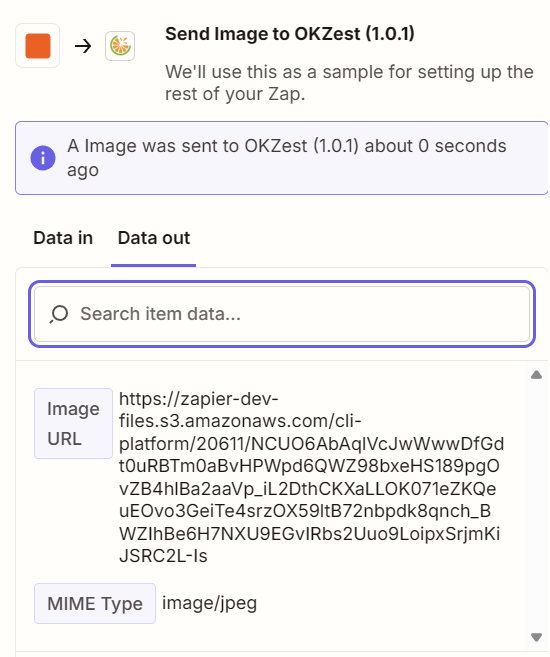
Your image has now been created with live data!
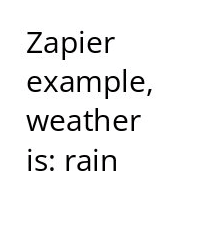
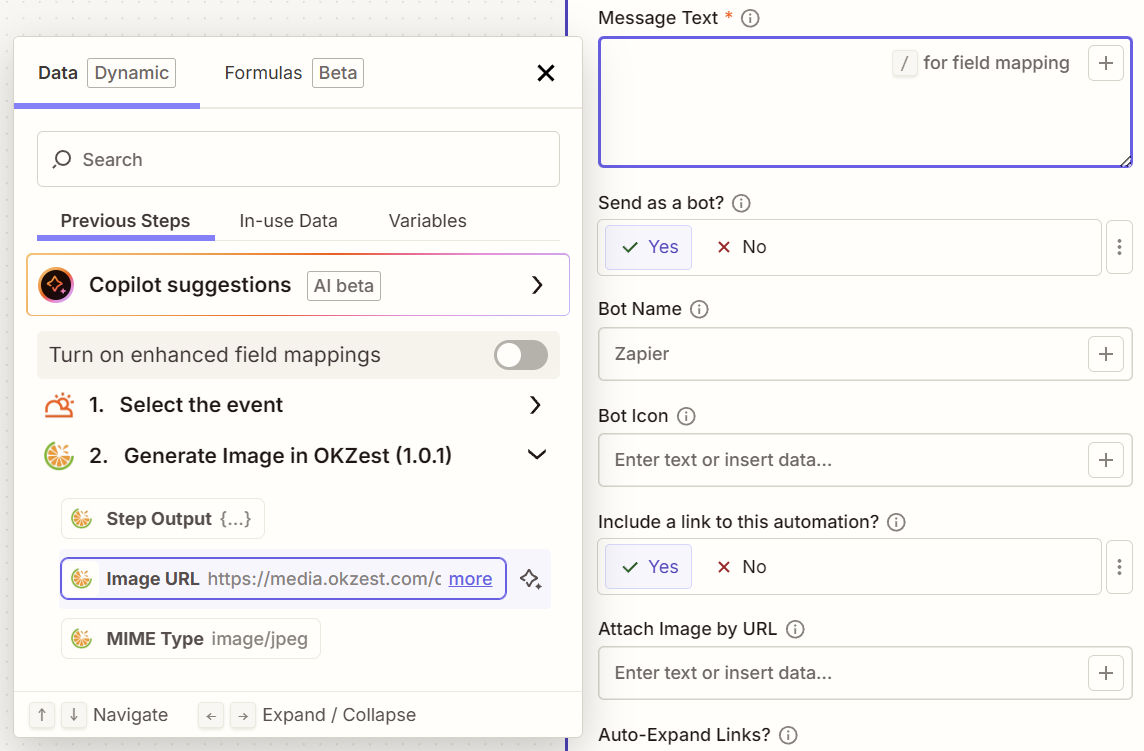
You can now add an extra step in Zapier to send the image to WhatsApp, Slack, Microsoft Teams etc. by passing in the Image URL to your next step.
Finally, publish your Zap.
