Merge Tags
What are merge tags?
A merge tag is a placeholder for a personal detail. When your email is sent, your email platform replaces each merge tag with that person's details. For example, Hi {{FNAME}} becomes Hi Sarah.
OKZest uses the same merge tags inside your image link, so each person gets an image with their own details.
Merge tag formats
Every email platform writes merge tags in its own format. In OKZest you enter the format your platform uses, so OKZest works with almost any platform.
| Email platform | First name merge tag |
|---|---|
| Mailchimp | *|FNAME|* |
| Klaviyo | {{first_name}} |
| HubSpot | {{ contact.firstname }} |
| Instantly | {{firstName}} |
| MailerLite | {name} |
| AWeber | {{!firstname_fix}} |
| Smartlead | {{first_name}} |
See the Share page instructions for more platforms and step-by-step guides. If your platform isn't listed, check its help center for "merge tags" or "personalization tags".
What you can use
You can use any detail your platform or database holds about each person, for example:
- First name, last name or full name
- Email address
- Company name or website
- Job title
- City, state or country
- Order number, product name or price
- Membership number, renewal date or points balance
- Your own custom fields
The details must be accurate and up to date in your data source, because a wrong name does more harm than no name. See Data sources for where the data can come from.
How to add a merge tag in OKZest
- In the editor, select Add content, then Dynamic text (or Dynamic image)
- In the layer's settings, fill in:
| Setting | What it's for | Example |
|---|---|---|
| ID | A short name for the layer. It's used as the parameter name in your image link and in the API. | name |
| Merge tag | The merge tag in your email platform's format | *|FNAME|* |
| Default text | The fallback text shown when the detail is missing. Leave it empty to show nothing. | friend |
- Style the text and position it on your design
- Save, then preview it with some test values
The IDs c, i, f and o are reserved by OKZest, so you can't use them.
Good to know
- You can use as many merge tags in one image as you like
- Each dynamic layer can be styled on its own
- Put static text before or after a merge tag in the same layer, for example Welcome back, {{FNAME}}!
- Merge tags work for images too: a dynamic image layer can show a different picture for each person, from an image web address in your data
- The background color or image can also change for each person, using its own ID and merge tag
URL parameters
Every OKZest image has a link that looks like this:
https://media.okzest.com/img?c=AbOHw7ix50qyNXVf3fp9SQ&i=KaHn-_h98UeJXEdb4hxGvg
c is your company and i is the design. After them, you add one URL parameter for each dynamic layer, written as name=value. The name is the layer's ID (the one you set in the editor) and the value is what that layer should show.
A merge tag is how that value reaches the link. In an email, you put your email platform's merge tag where the value goes, for example first_name=*|FNAME|* in Mailchimp. When the email is sent, the platform swaps in each person's details, and OKZest draws the image for that person.
The examples on this page use a demo design with three dynamic layers: first_name (default text there), offer (default text No offer today) and photo (a placeholder image).
Syntax
- Start the query with
candi, then add each parameter with&:...&i=DESIGN&first_name=Sandra&offer=Free%20shipping - The parameter name is the layer ID. Unknown parameters are ignored.
- Layer IDs made through the API or MCP server use 1 to 50 letters, numbers, underscores or hyphens, and each ID is unique within a design.
c,i,fandoare reserved. You can't use them as layer IDs.- In the text of a text layer,
[layer_id]is replaced with that layer's value, for example Hi [first_name]!. Only the layer's own ID is replaced, and it is replaced everywhere it appears in that layer. There are no other placeholder formats and no filters. - Static layers ignore their parameter.
What shows when a value is missing
OKZest uses the first of these that has a value:
- The parameter in the link
- An HTTP request header with the same name as the layer ID
- The layer's default text
- Nothing
So first_name= (empty) shows the default text, not a blank. If there is no default text, the placeholder is replaced by nothing, and any spaces around it stay.
A merge tag your email platform doesn't replace is not spotted. If the link reaches OKZest with first_name=*|FNAME|* still in it, the image shows *|FNAME|* as text. Always send a test email to yourself before a campaign.
Encoding rules
The value in a link must be URL-encoded. OKZest adds no special rules of its own.
| Character | Write it as | If you don't encode it |
|---|---|---|
| Space | %20 or + (both give the same image) | |
& | %26 | The value stops at the &, and the rest is treated as another (unknown) parameter |
+ | %2B | A raw + is read as a space |
# | %23 | Browsers and email clients never send anything after a #, so the value is lost |
% | %25 | The link can be read wrongly |
| Accents, symbols and other non-English letters | UTF-8 percent-encoding, for example %C3%AB for ë | Garbled or missing characters |
An image address (https://...) | Encode all of it, including any ? and & inside it | The address is cut off at the first & |
How a character looks also depends on the layer's font, so check that the font has the glyph you need.
Many email platforms do not URL-encode the details they insert. If a name contains &, # or +, the image can come out wrong. Check how your platform handles this in its own help pages, and send a test with awkward values.
Parameters by layer type
| Layer type | Parameter value | What happens |
|---|---|---|
| Text | Any text | Replaces [ID] in the layer's text |
| Image | A full web address starting http:// or https:// | The image is fetched and fitted to the layer. If the value is empty or isn't an address, the layer's default image stays |
| Logo | A domain or web address, for example okzest.com | The logo is looked up from the domain. If you also pass an image address, that image is used instead |
| Website screenshot | A page address | A screenshot of the page is placed in the layer |
| Logo or screenshot set to read the domain from an email | An email address | The part after the @ is used as the domain |
| Background image (dynamic) | An image address | Replaces the background image, using the ID you gave the background |
| Background color (dynamic) | A hex code (%23 in place of #, or no #), a CSS color name, or a color with transparency | Replaces the background color. An invalid value keeps the saved color |
Output options work on every design:
| Parameter | Values | Notes |
|---|---|---|
f | jpg (default), png, webp, pdf, pdf_letter | If you use a dynamic background photo and don't set f, you get a JPG |
q | A whole number | Image quality |
o | portrait (default) or landscape | PDF only. Any other value gives portrait |
There is no QR code, barcode or shape layer with a URL parameter.
Worked examples
Each link below was requested on 2026-11-12 and returned the image shown. The base link is the demo design described above.
Fill in a name
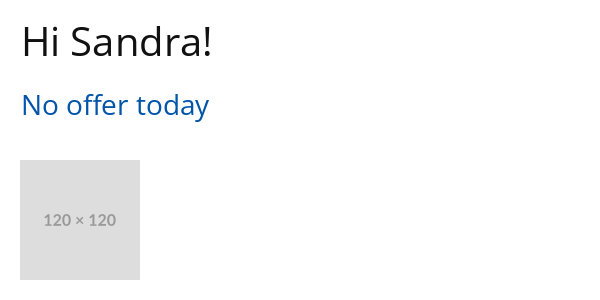
https://media.okzest.com/img?c=AbOHw7ix50qyNXVf3fp9SQ&i=KaHn-_h98UeJXEdb4hxGvg&first_name=Sandra
One parameter changes one layer.
Fall back to the default
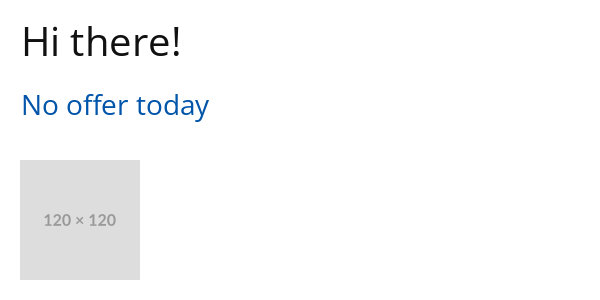
https://media.okzest.com/img?c=AbOHw7ix50qyNXVf3fp9SQ&i=KaHn-_h98UeJXEdb4hxGvg
With no parameters, the layers show their default text. An empty value (&first_name=) gives the same image.
Several parameters
https://media.okzest.com/img?c=AbOHw7ix50qyNXVf3fp9SQ&i=KaHn-_h98UeJXEdb4hxGvg&first_name=Sandra&offer=20%25%20off
Join parameters with &. The %25 is an encoded %.

A space in a value
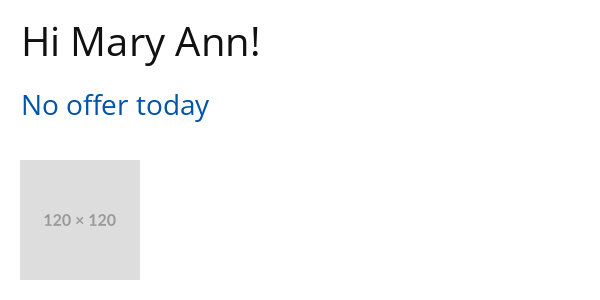
https://media.okzest.com/img?c=AbOHw7ix50qyNXVf3fp9SQ&i=KaHn-_h98UeJXEdb4hxGvg&first_name=Mary%20Ann
Mary+Ann gives the same image.
An ampersand in a value
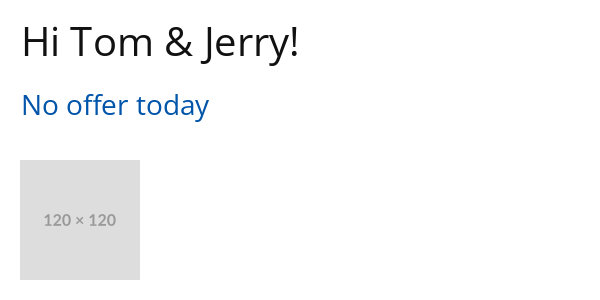
https://media.okzest.com/img?c=AbOHw7ix50qyNXVf3fp9SQ&i=KaHn-_h98UeJXEdb4hxGvg&first_name=Tom%20%26%20Jerry
%26 keeps the & inside the value.
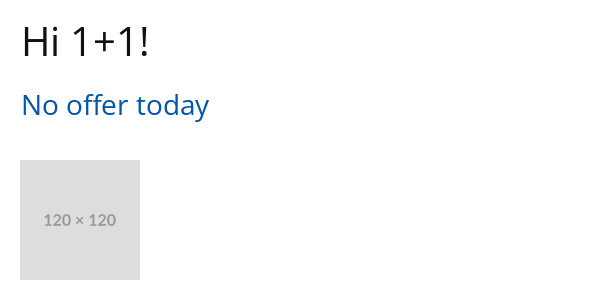
A plus sign in a value
https://media.okzest.com/img?c=AbOHw7ix50qyNXVf3fp9SQ&i=KaHn-_h98UeJXEdb4hxGvg&first_name=1%2B1
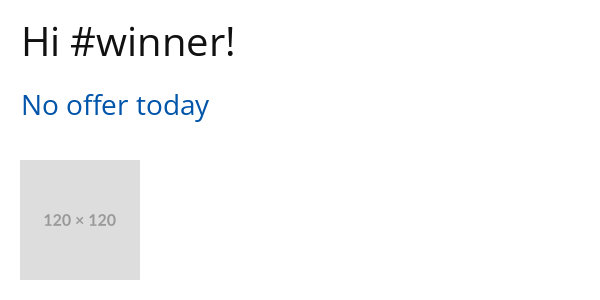
A hash in a value
https://media.okzest.com/img?c=AbOHw7ix50qyNXVf3fp9SQ&i=KaHn-_h98UeJXEdb4hxGvg&first_name=%23winner
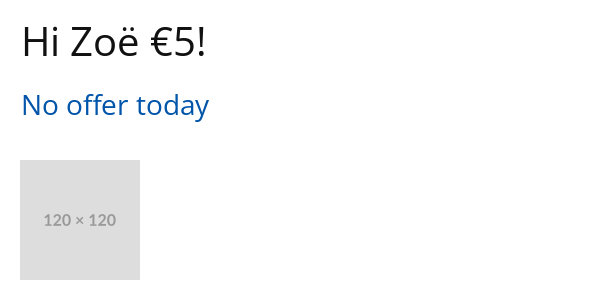
Accents and symbols
https://media.okzest.com/img?c=AbOHw7ix50qyNXVf3fp9SQ&i=KaHn-_h98UeJXEdb4hxGvg&first_name=Zo%C3%AB%20%E2%82%AC5
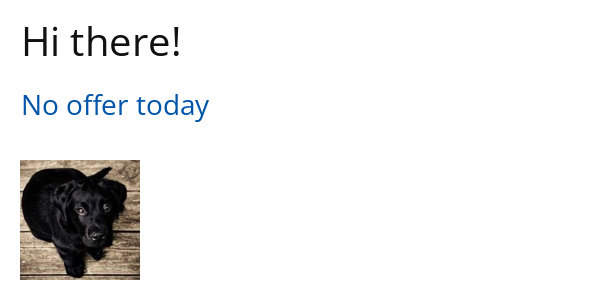
Replace an image
https://media.okzest.com/img?c=AbOHw7ix50qyNXVf3fp9SQ&i=KaHn-_h98UeJXEdb4hxGvg&photo=https%3A%2F%2Fpicsum.photos%2Fid%2F237%2F200%2F200.jpg
The whole image address is encoded.
Another file type
https://media.okzest.com/img?c=AbOHw7ix50qyNXVf3fp9SQ&i=KaHn-_h98UeJXEdb4hxGvg&f=png
The same design as a PNG. f=webp gives a WebP.
Common mistakes
| Mistake | What you see | Fix |
|---|---|---|
A raw & in a value, for example Tom & Jerry | The image shows only Tom (with a trailing space), the same as first_name=Tom%20 | Encode it as %26 |
A raw # in a value, for example #winner | The default text, because the value never reaches OKZest | Encode it as %23 |
A raw + in a value, for example 1+1 | 1 1 | Encode it as %2B |
| An empty value | The layer's default text | Set sensible default text for every layer |
| A merge tag your platform doesn't replace | The tag itself, for example *|FNAME|*, drawn on the image | Check the tag against your platform's format, and send yourself a test |
| A misspelt parameter name | The default text, because unknown parameters are ignored | Match the layer ID exactly |
An image value that isn't a full address, for example not-a-url | The layer's default image | Pass the whole https:// address, encoded |
Using c, i, f or o as a layer ID | Not allowed, because these are reserved | Pick another ID |
Where to next
- Data sources: where the values for your merge tags come from
- Quickstarts: email image, social image and API
- Troubleshooting and FAQ: images not showing or not updating, and other common problems
- Share page instructions: step-by-step guides for each email platform
- OKZest API: create images from your own code
- Blog: A practical guide to using an image API URL and Personalized images: how they work and how to create them at scale
- For plans, limits and prices, see the pricing page